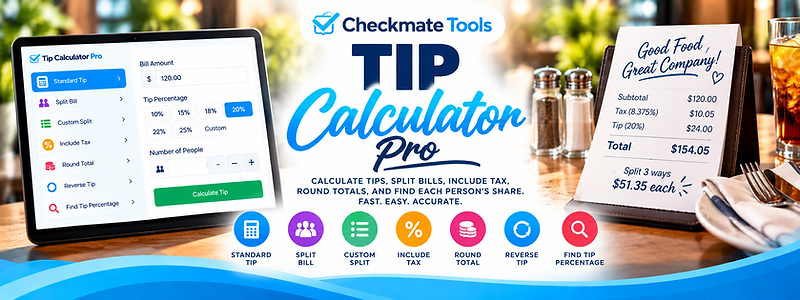
Tip Calculator Pro — Calculate tips, split bills, include tax, round totals, and find each person's share.
Calculate tips, split bills, include tax, round totals, and find each person's share quickly and easily.
Calculation type
Selected: Standard Tip Calculator
Result
—
Choose a calculation, enter your numbers, and select Calculate to see the result.
Share result
Copy and share unlock as soon as you have a valid result.
How to Calculate a Tip
A tip is a percentage of the bill. Multiply the bill by the tip percentage and divide by 100:
$50 × 20% = $10 tip, so the total is $60.
The calculator shows the tip and the total separately, and adds the tax line when you turn tax on.
How to Split a Bill
Splitting equally divides the whole bill — including tax and tip — by the number of people. Every part is worked out in whole cents, and any cents that cannot be divided evenly are assigned so that the parts still add back up to the exact total shown.
Splitting by individual order works differently. Each person's own subtotal is entered, and tax and tip are shared in proportion to what each person ordered, so someone who ordered more pays a proportionally larger share of both.
Tip Before Tax vs. After Tax
You can choose whether the tip is calculated on the pre-tax subtotal or on the after-tax total, and the result states which basis was used.
Calculating on the pre-tax subtotal is the default here because it tips on the food and drink rather than on the tax. Calculating on the after-tax total is also common. Practices and preferences vary, so neither is presented as the required method.
How Custom Split Works
In a custom split, every person's own subtotal is entered separately, and the participant subtotals have to add up to the bill. While you type, the page shows the amount still remaining to allocate, or the amount over allocated, so a mismatch is obvious before you calculate.
Tax and tip are then allocated in proportion to each person's share of the bill, using the formula (person subtotal ÷ combined subtotal) × total tax or tip. Money is handled in whole cents and any remaining cent is assigned deterministically, so the rounded participant totals always add up to exactly the overall total that is displayed.
Rounding Your Tip or Total
Rounding is optional and applies in a fixed order: the tip is rounded first, then the total. Tax is never changed by rounding the total.
Rounding changes how much is paid, so the difference is never hidden. If the total is rounded up, the extra amount is added to the tip and the result shows the effective tip and the effective tip percentage. If rounding changes the tip, the result shows the effective percentage as well.
Tip Guide
Tipping customs vary by country, service type, business, and situation. There is no single percentage that applies everywhere, and this page does not present one as required.
The presets — 10%, 15%, 18%, 20%, 22% and 25% — are simply common round numbers to start from. You can select any of them, or choose Custom and enter any percentage you like, including decimals and values above 100.
Some restaurants add a service charge to the bill, and some countries include service in the price. Where that is the case, it is worth checking the bill before deciding what to add.
Frequently asked questions
How do I calculate a tip?
Multiply the bill by the tip percentage divided by 100. For a $50 bill and a 20% tip, that is 50 × 0.20 = $10.00, so the total is $60.00. Checkmate does this for you and shows the tip and the total separately.
How much is a 20% tip?
A 20% tip is one fifth of the bill: $20.00 on a $100.00 bill, or $10.00 on a $50.00 bill. 20% is one of the quick presets, but it is a starting point rather than a recommendation.
How do I split a restaurant bill?
Enter the bill and the tip percentage, set the number of people, and the calculator shows the total and each person's share. Every part is worked out in whole cents and the parts always add back up to the exact total.
Can I split the bill between several people?
Yes. Enter any whole number of people from 1 to 50 and the bill, tax and tip are divided equally between them, with each person's bill share, tax share, tip share and total shown.
Can each person enter a different order amount?
Yes. Choose Custom split and enter each person's own subtotal. That is useful when people ordered very different amounts and want to pay for what they had rather than an equal share.
How does Custom Split work?
You enter the bill amount and then each person's own subtotal. The participant subtotals have to add up to the bill, and the page shows the amount still remaining or the amount over allocated while you type. Tax and tip are then allocated in proportion to each person's subtotal, so a larger order carries a larger share.
Does Tip Calculator Pro include tax?
Only if you turn it on. Tax is off by default. When you enable Include Tax and enter a rate such as 8.375%, the tax is calculated from the bill and shown separately, and you choose whether the tip is based on the pre-tax subtotal or the after-tax total.
Should I calculate the tip before or after tax?
Both are offered and neither is presented as required. Calculating on the pre-tax subtotal is the default here, and calculating on the after-tax total is also common. Practices and preferences vary, so the calculator lets you pick and states clearly which basis it used.
How do I round a tip?
Use Round Tip and choose Round Down, Nearest Dollar or Round Up. A $23.62 tip becomes $23.00 rounded down, $24.00 to the nearest dollar, or $24.00 rounded up. When rounding changes the tip, the result shows the effective tip percentage so the difference is visible.
How does Round Total affect the tip?
Rounding the total changes how much is paid, so the tip absorbs the difference rather than the difference disappearing. If a $67.42 total is rounded up to $68.00, the extra $0.58 is added to the tip and the result shows the effective tip and the effective tip percentage. Tax is never altered by rounding the total.
What is an effective tip percentage?
It is the tip that was actually paid as a percentage of the bill, after any rounding. If rounding adds a few cents, the effective tip percentage is slightly higher than the percentage you entered, and the calculator shows both.
How do I calculate the original bill from a final total?
Use Reverse Tip Calculator. Enter the final total and the tip percentage, and the bill is the total divided by one plus the tip rate: $120.00 at 20% gives an original bill of $100.00 and a tip of $20.00. Subtracting the percentage from the total would give the wrong answer, so the calculator divides instead.
How do I find what percentage I tipped?
Use Find Tip Percentage. Enter the bill and the tip amount, and the percentage is the tip divided by the bill, multiplied by 100: a $16.00 tip on an $80.00 bill is 20%. You can also enter the final total instead, and the tip amount is worked out by subtracting the bill.
Does Checkmate save my bill information?
No. Every calculation runs in your browser. The bill, the tax rate, the tip percentage, the number of people, each person's subtotal and the results are never sent to a server, never written to a database or to your device, and never placed in a URL. Press Reset to clear everything at any time.
Does Checkmate send my bill information to Google Analytics?
No. Analytics only records that the tip calculator page was viewed. No bill amount, tax rate, tip percentage, total, number of people, participant subtotal or rounding choice is ever sent to analytics, and the calculator has no custom analytics events of its own.