QR Code Pro
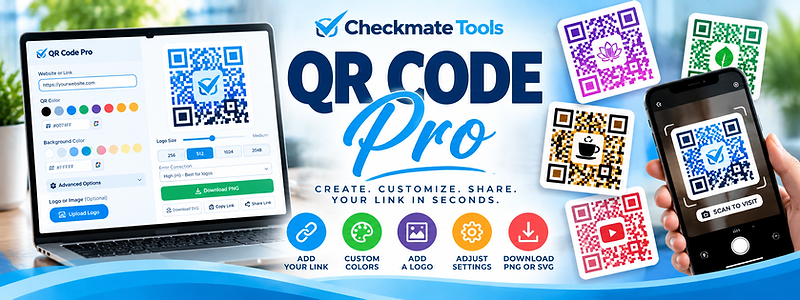
Create a custom QR code for your link. Choose your colors, add an optional logo, preview your design, and download it instantly.
QR Code Pro creates static QR codes. The destination is stored directly in the QR code and cannot be changed after the code is created.
Website or Link
Use a full link starting with http:// or https://. The link is encoded directly into the QR code in your browser and is never sent to Checkmate.
Design
Advanced OptionsError correction: M
Logo or image
Optional. PNG, JPEG or WEBP up to 5.0 MB. The image is placed in the center of the QR code and stays in your browser — it is never uploaded anywhere.
Live preview
Enter a website or link to see your QR code here.
No QR code yet. Enter a website or link.
- Export size
- 512 × 512
- Error correction
- M
- Center logo
- None
- Contrast
- 21.0:1 — Good contrast
Good contrast. Dark modules on a light background are what most scanners expect. Always test the downloaded code before you print or share it.
Download and share
Downloads and sharing unlock as soon as your link produces a valid QR code.
How to Create a Custom QR Code
- Enter your website or link in the Website or Link field.
- Choose your QR color and background color, using a preset or an exact HEX value.
- Optionally add a logo or image and choose how large it should appear.
- Adjust the export size, and open Advanced Options if you want to change error correction.
- Check the live preview — including any contrast warning — and make sure it looks right.
- Download the code as PNG or SVG.
- Test the downloaded QR code with a phone before you print or distribute it.
Tips for QR Code Readability
- Use strong contrast between the QR color and the background.
- Dark modules on a light background are generally the safest combination.
- Leave clear empty space around the code — the quiet zone is part of how it scans.
- Make the code large enough for the distance it will be scanned from.
- Use a higher error-correction level when you add a center logo.
- Keep center logos reasonably small — a logo that covers too much of the code can stop it working.
- Always test the final downloaded QR code before printing or sharing it.
No QR design can be guaranteed to scan on every camera, scanner, screen, printer or lighting condition, which is why testing the finished code matters.
Static QR Codes
QR Code Pro creates static QR codes. The destination is encoded directly into the QR code and cannot be changed after the QR code has been generated or downloaded. If you need a different destination later, generate a new code and replace the old one.
Frequently asked questions
What is a QR code?
A QR code is a square pattern of black and white modules that a camera can read and turn back into text — usually a website link. Scanning one with a phone camera or scanner app opens the link it contains.
Can I change the color of my QR code?
Yes. Pick a preset or enter any HEX value for the QR modules. Keep the modules clearly darker than the background — most scanners expect dark on light.
Can I use any custom HEX color?
Yes. Any valid three- or six-digit HEX value works, alongside the presets. QR Code Pro warns you when a combination is likely to be hard to scan, but it never stops you from using it.
Can I change the background color?
Yes. The background defaults to white, which is the safest choice. You can set any HEX color, and light tones generally scan more reliably than dark ones.
Can I put my logo in the middle of a QR code?
Yes. Upload an image and QR Code Pro centers it on a small backing plate, keeping it to about 10–20% of the QR width and switching to the highest error-correction level so the code has the best chance of still being readable.
What image formats can I use for my logo?
PNG, JPEG and WEBP, up to 5 MB. SVG files are not accepted, because they can contain scripts and this tool does not sanitize them.
Will adding a logo stop the QR code from working?
Not by itself — the logo sits on top of a small part of the code, and error correction rebuilds that part. But no design is guaranteed to scan on every camera, printer or lighting condition, so always test the downloaded code before you distribute it.
What colors work best for QR codes?
Dark QR modules on a light background. A near-black, navy, deep blue, dark green or dark purple on white gives the strongest contrast. Avoid light modules, similar foreground and background colors, and busy patterned backgrounds.
What does QR error correction mean?
Error correction stores extra recovery data inside the QR code. The higher the level, the more of the code can be damaged, dirty or covered and still be read. Higher levels also make the code denser.
What size QR code should I download?
It depends on where it will be used. 512 × 512 is a good default for screens, 1024 × 1024 suits posters and signage, and 2048 × 2048 is the best choice for print. SVG scales to any size without losing quality.
Can I change the destination after downloading my QR code?
No. QR Code Pro creates static QR codes, so the destination is stored directly inside the code. Changing it would mean generating a new code and replacing the old one.
Does Checkmate save my link?
No. The link is encoded in your browser and never sent to Checkmate or any other service. Nothing you enter is stored in a database, a cookie or your browser's storage.
Does Checkmate upload or save my logo?
No. Your image is read and used in your browser's memory only. It is never uploaded, saved, added to a URL or sent to an image service.
What is the difference between PNG and SVG?
PNG is a pixel image, so its quality is fixed at the resolution you choose. SVG is a vector file that stays perfectly sharp at any size and is usually the better choice for printing.
Can I share my original link from QR Code Pro?
Yes. Copy Link copies your destination link, and Share Link opens your device's native share sheet when the browser supports it. Only the link is shared — never your logo, your QR image or your settings.